
TL;DR: Conversion tracking shows which ads generate enquiries through form submissions, calls and email clicks. Create conversions in Google Ads and use Google Tag Manager to set up tags and triggers. Test the tracking before using the data to optimise your campaigns.
A conversion is an action that can lead to a new customer. For example:
- A customer fills in your contact form to request a quote
- A customer calls you directly from the ad
- A customer clicks on your phone number on the website
2. How to create conversions in Google Ads
- Go to Google Ads → Click on “Tools and settings” (the spanner icon).
- Select “Conversions” under “Measurement”.
- Click on “+ New conversion action”.
- Choose what you want to track:
- Website (if you want to measure contact forms or button clicks)
- Phone calls (if you want to track calls directly from the ad)
- Import (if you use Google Analytics to track visitors)
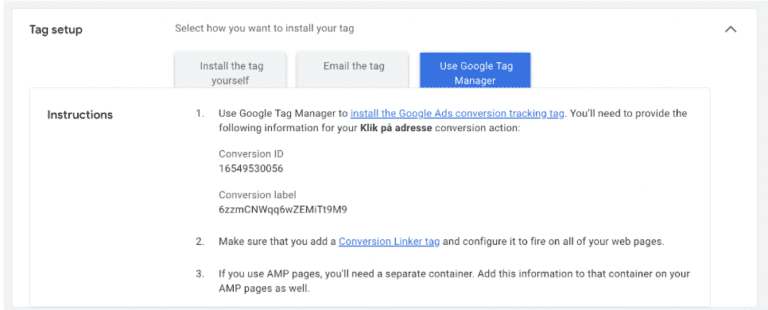
- Select Google Tag Manager to configure your conversion action.
- Copy the Conversion ID and Conversion Label – you'll need them in GTM.
3. Setting up tracking through Google Tag Manager
Setting up your tag
- Log in to Google Tag Manager → at tagmanager.google.com.
- Click on Tags in the left-hand menu and select New.
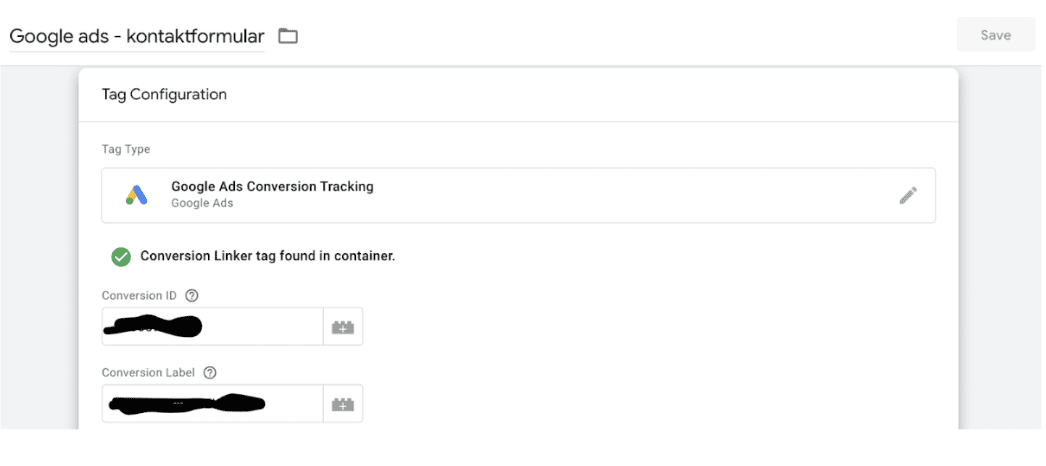
- Click on Tag Configuration and select Google Ads Conversion Tracking.
- Enter the Conversion ID and Conversion Label from Google Ads.
- Under Triggering, choose how tracking should be activated – see the next step.
Setting up triggers
The trigger is the most important part of the setup, as it defines when the small piece of code we add from Google Ads should run. This allows Google Ads to report that users have completed the desired interaction with the website.
Below, I've covered the two most important triggers on the website; phone call clicks & contact form submissions.
Phone number trigger
Many tradespeople receive enquiries by phone, so it's important to track these calls.
- Go to Triggers and click New.
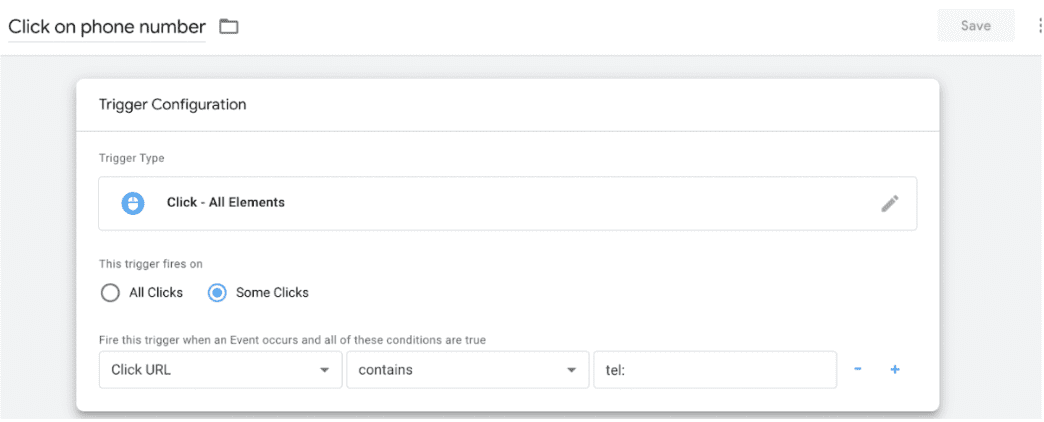
- Select Click – some links as the trigger.
- Set the condition to:
Click URL contains “tel:” (for phone calls) - Click URL contains “mailto:” (for emails)
- Add this trigger to your conversion tag.
Contact form trigger
If you want to track enquiries through a contact form, you can choose between two methods. The thank-you page method or the form submission method.
The difference between the two is that if your contact form sends the customer to a “Thank you for your enquiry” page after submission, we can track that page using the thank-you page method. If not, we can use the form submission method.
The thank-you page method
requires you to add a tracking code to your website:
- Go to Triggers in GTM and click New.
- Select Page View as the trigger.
- Set the condition: Page URL contains “tak” (or whatever matches your thank-you page).
- Save the trigger and add it to your conversion tag
The form submission method.
- Go to Triggers in GTM and click New.
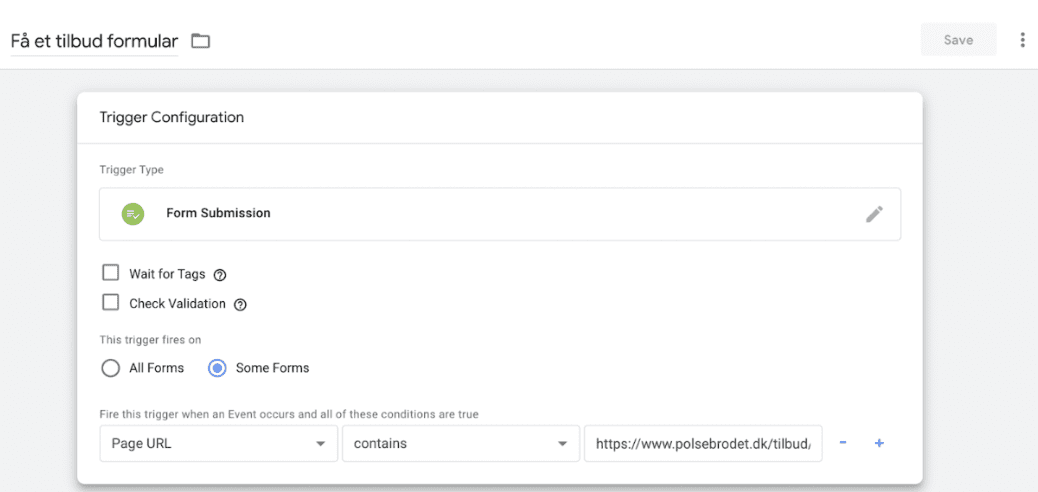
- Select Form Submission as the trigger.
- Set the condition: Page URL contains “tilbud” (or whatever matches your quote page).
- Save the trigger and add it to your conversion tag
4. Publish your changes in Google Tag Manager
Once your tracking is set up, you need to activate it in Google Tag Manager:
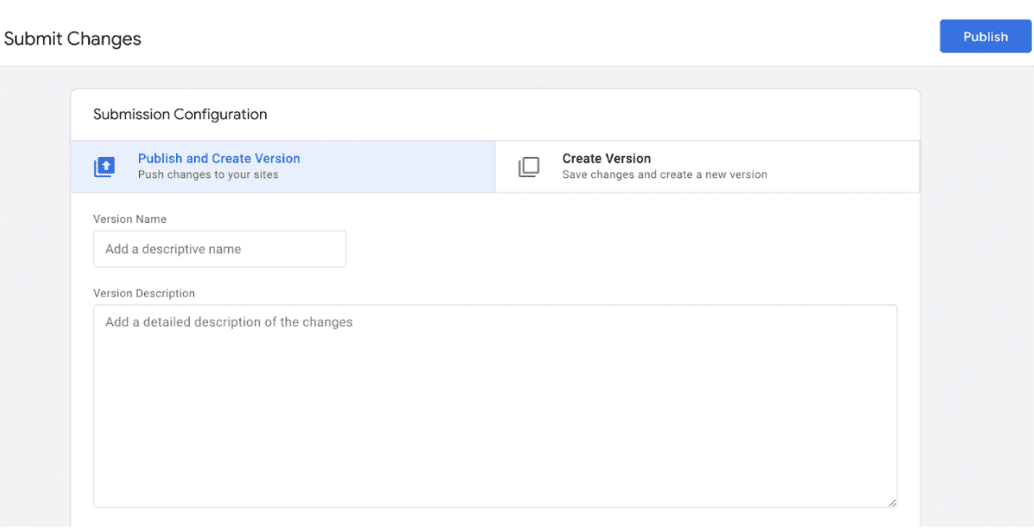
- Click Submit in the top right-hand corner of GTM.
- Skip or give the version a name (I never give it a nickname).
- Click Publish.
5. Test whether your tracking works
With Google Tag Manager, you can check whether your tags work using a feature called Preview Mode. It lets you see whether your tags are activated correctly. Here's how to use it:
- Open Google Tag Manager and click Preview in the top right-hand corner.
- Enter your website's URL and click Connect.
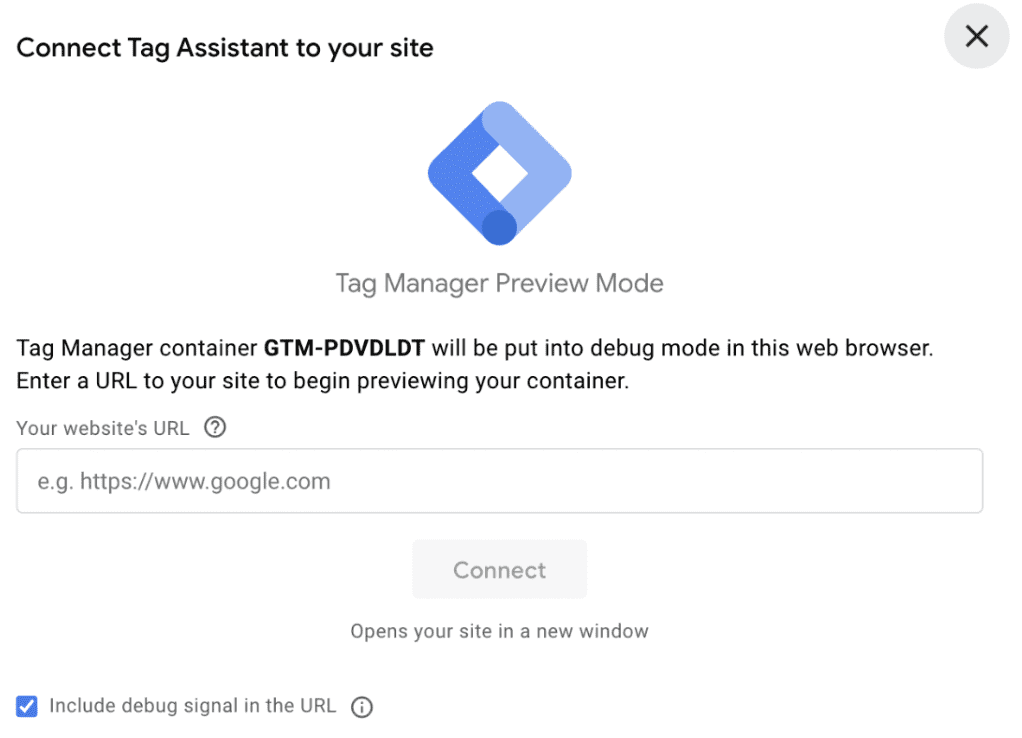
3. Your website now opens in a new tab, and the GTM Debugger window appears in the original tab.
4. Perform the action that should trigger your conversion (e.g. fill in and submit a form).
5. In the GTM Debugger window, you can now see whether your tag fired under Tags Fired. If your tag appears under “Tags Fired”, your tracking is working!
 If your tag appears under “Tags Not Fired”, there is an error in the setup.

Written by
Frederik Krøl Larsen
SEO Specialist & Partner